
How to Make a Family Tree Chart or Book on MyHeritage
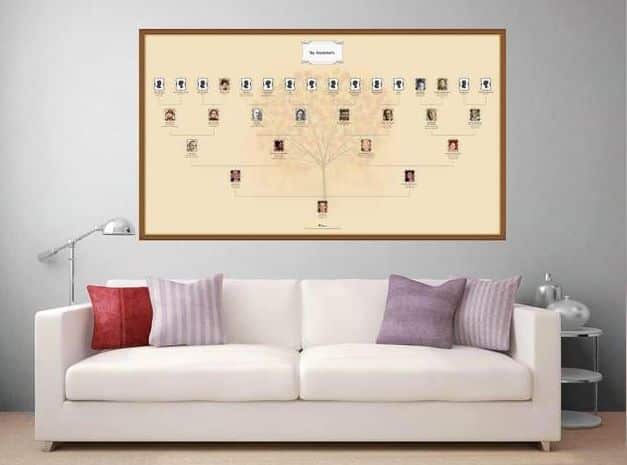
Did you know that you can generate your own beautiful, professionally printable genealogy chart or family book on MyHeritage?
Start your family tree
and make new discoveries

You’ve been working so hard on your tree, painstakingly entering names and dates, citing sources, and uploading photographs. Now you can enjoy the fruits of your labor and share them with your loved ones with a striking family tree chart or book.

On MyHeritage, you can easily generate charts or family books in PDF form based on your tree. You can then print them using your home computer or local print service. Frame and display yourgenealogy chart proudly on your wall, bring it to your next family reunion, or give it to a family member as a personalized, one-of-a-kind gift.
Here’s how to make a family tree chart or book on MyHeritage.
1. Select a family tree format
Hover over the “Family Tree” tab on the navigation bar and click “More.” Select “Print charts&books” from the extended menu.
You can choose from 9 different formats:
Bowtie chart
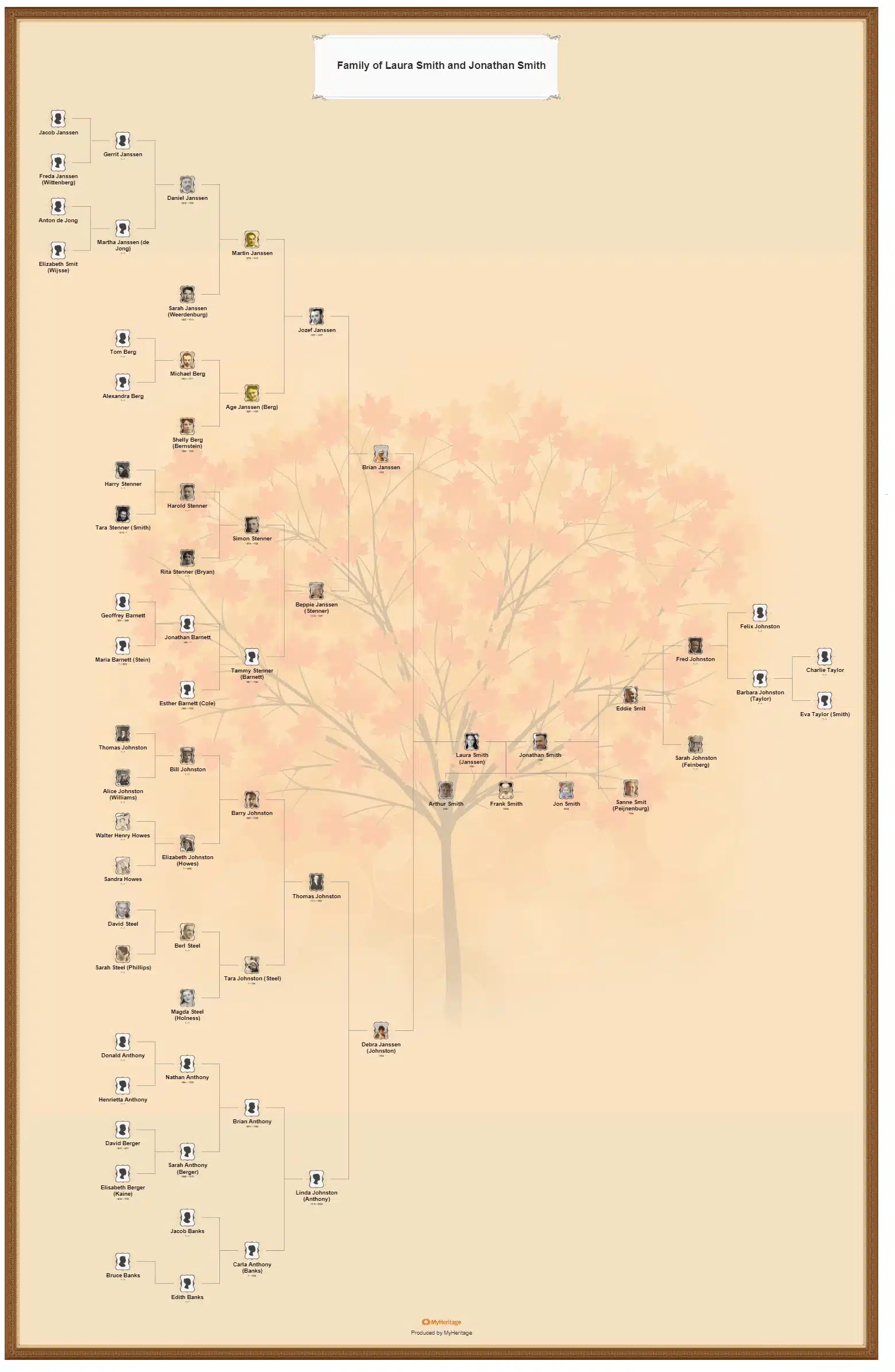
The bowtie chart shows the main person at the center next to one spouse, with their ancestors branching out on either side and their children below. The symmetry and proportions of this chart make it an excellent choice for a wall hanging.
Close family chart

The close family chart displays the grandparents of the main person and all the descendants of those grandparents, including all the cousins of the main person. This is a good format for sharing with cousins, aunts, and uncles.
Ancestors chart
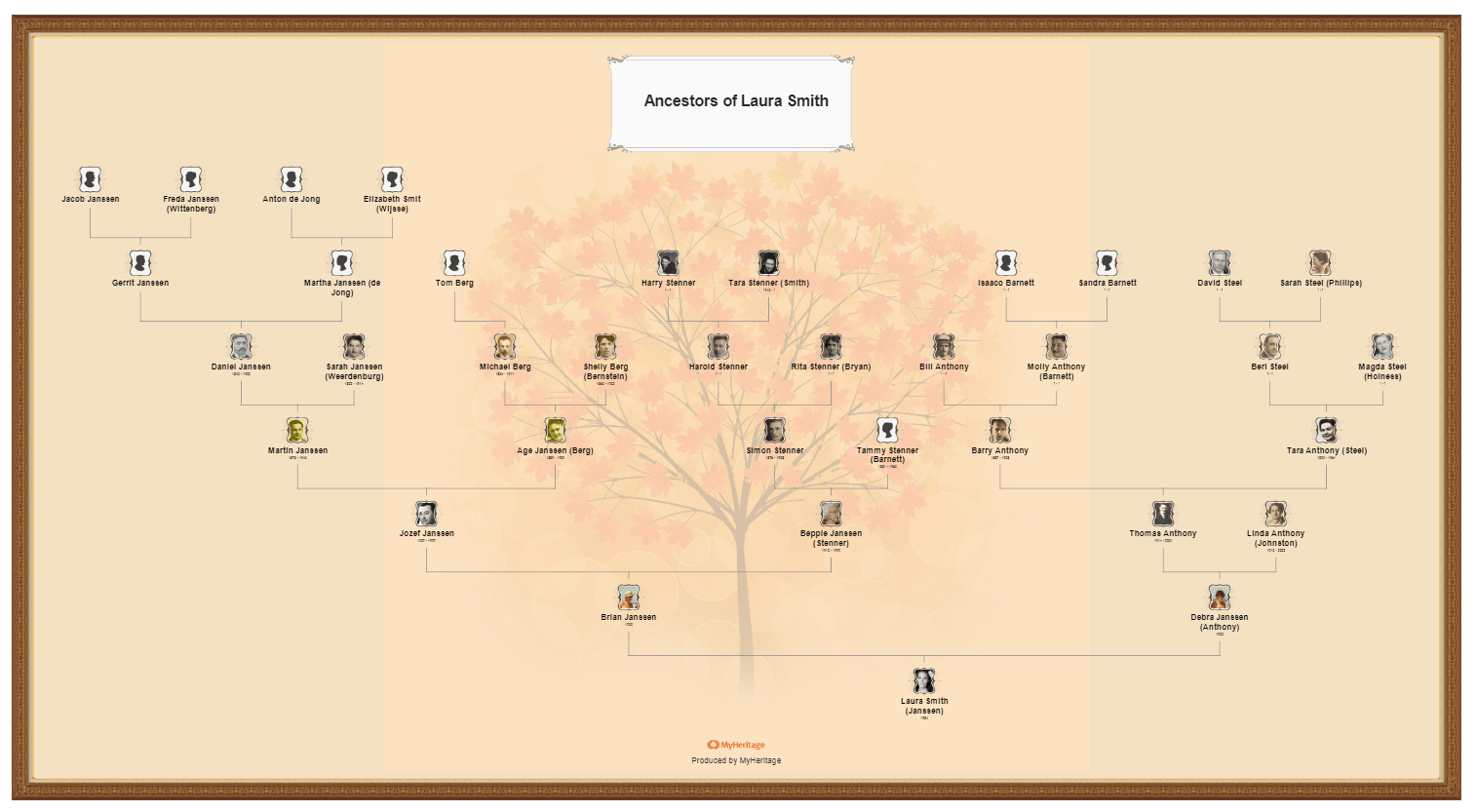
The ancestors chart displays all the ancestors of the main person up to the number of generations you select. This symmetrical, elegant chart is the perfect gift for a child. You can select a horizontal or vertical format for this chart.
Descendants chart
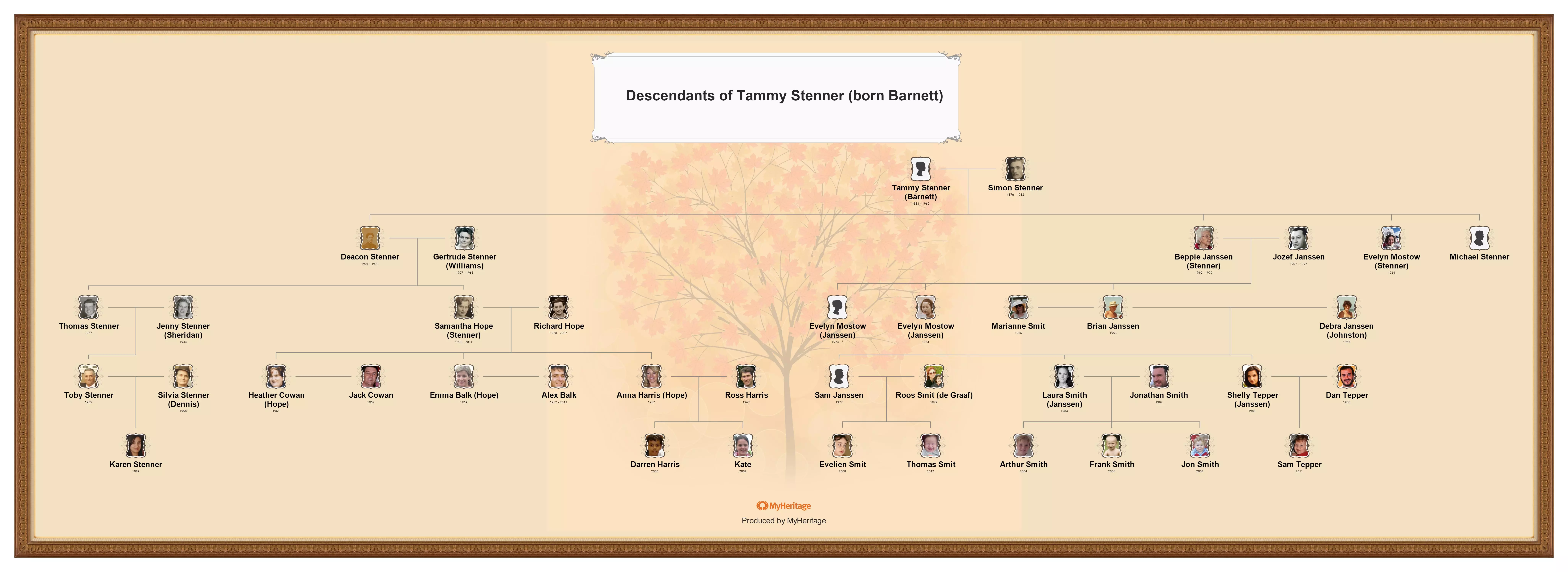
The descendants chart displays all the descendants of the main person from each of their spouses, down to the number of generations you select. The proportions of the chart vary according to the number of descendants in each generation.
This is a great genealogy chart for sharing with relatives with whom you share a common ancestor: pick that ancestor as the main person. You can select a horizontal or vertical format for this chart.
Hourglass chart
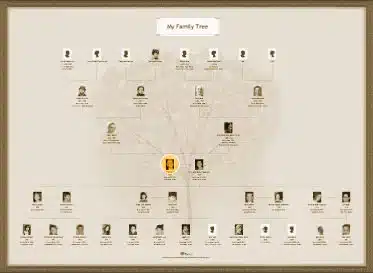
The hourglass chart combines the ancestor chart and the descendant chart for the same main person. This chart is a great choice to give to an older relative, who may enjoy seeing their ancestors and descendants together. You can also select the vertical or horizontal format for this chart.
Sun chart

The sun chart is a new format exclusive to MyHeritage, inspired by a traditional circular family tree format used in communities across Europe for centuries. You can select the descendants or ancestors sun chart. Unlike the fan chart, this type of chart supports photos.
The descendant sun chart is a perfect choice for a family reunion, because it can display a very large number of descendants in a relatively small space. The main person is displayed at the center, and their descendants are displayed in the outer rings.
The ancestor sun chart displays all ancestors of the main person, up to the number of generations you select.
Fan chart
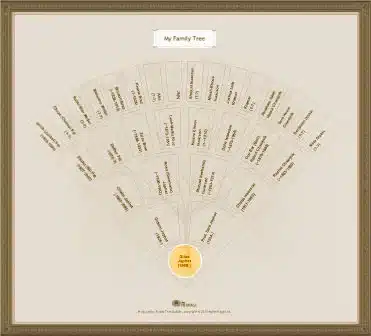
The fan chart displays either all the ancestors or all the descendants of the main person (from one spouse) in a unique fan format. You can limit the number of generations.
All-in-one chart
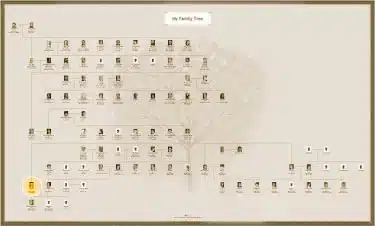
The all-in-one chart displays all the relatives of the main person, including relatives by blood and by marriage. This is a great option if you want to capture your entire family tree in one chart.
Family book
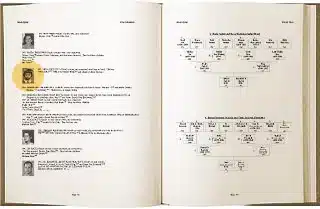
The family book is a detailed and professional compilation of the family tree. It includes narratives on each person’s life, photographs, family tree diagrams, and useful indexes. This is an amazing way to capture all the research you’ve done in a printed book your family will cherish for generations.
Pro tipIf you select a format that supports personal photos, make sure as many as possible of the individuals who’ll appear in it have personal photos in your tree before generating the chart. This will make for a much more striking and personalized visualization. Relatives without photos will be represented by a generic icon.
2. Select a style for your chart
If you’ve selected a chart format (except the sun chart), you’ll be able to choose from 18 different styles for your chart, including different backgrounds, colors, photo shapes, and more. Scroll left and right to browse the styles and select your favorite.

3. Customize your family tree chart
Choose who the main person of the chart or book will be and enter a title. Depending on the format you chose, you’ll be able to select which (if any) facts to include and how many generations of your family tree will appear.
If you’re planning to print the chart at home, you can select “Multiple pages.” This allows you to print it in multiple pages, which you can then connect to complete your homemade chart.
For a fancier, more professional-looking option, you can select “Single page” and print the chart professionally.
Advanced customization options
You can customize your chart even further, if you like! At the top of the page, next to “Chart options,” you’ll find “Advanced customization options.” Clicking this will take you to the advanced customization page. Here you can really get specific and choose your own designs, colors, and fonts for your family tree chart:
- Facts: Choose whether to display each individual’s name only, or certain facts, such as dates and places of birth and death. Under the “Custom” option here, you can choose any type of fact you’d like to include here, from religious details to military information to personal history. You can also select whether to use the full label with all the details, or a short label.
- Photos: Choose whether to display profile photos, whether to display a placeholder if no profile photo exists, and how big you’d like them to be on the chart.
- Design: Here you can pick either the “stylish” or “traditional” design for the boxes. The “stylish” one places a frame around the photo only, while the “traditional” design places a frame around all the information on the individual (including the photo, name, and facts). When you pick “stylish,” you’ll be able to choose a type of photo frame for each profile photo. When you choose “traditional,” you’ll be able to choose the type of border (line or graphical), its color or design, whether to add a shadow, and the background color for each box.
- Title decoration: Choose whether to include a decoration for your title, and if so, what type.
- Fonts: Specify your preferred font for the title, names, fact labels, fact text, and footer of your chart. You can choose from more than 40 supported fonts.
- Background: Here you can choose your background: a solid color with no background image, a tiled background image or a full background image. You can even upload your own image and choose how you’d like it to fit the chart.
- Frame: Select whether to include a frame around the chart, and if so, you can select a design.
- Lines: Select the color, width, and direction of the lines connecting the boxes. You can also choose whether to display a dotted line for adopted or foster parent/child relationships or terminated spouse relationships.
You can always go back to the previous page by scrolling to the top and clicking “Chart options.”
When you’re done, click “Generate chart” or “Generate book.” It may take a few minutes to generate your creation. You’ll receive an email notification when it’s ready.
4. Print your creation

On the “My charts” page, you’ll see a list of the charts and books you’ve generated. There are a few options for printing your creation:
Print your chart at home
To print your chart on your home printer, click “View PDF” beneath the chart you wish to print. This will open the file as a PDF on your browser. Select the “Print” option on your browser.
Print your family tree chart with a print service
You can also print your chart or book at your local print shop or online printing service. Click “View PDF” to open the PDF in your browser.
Then, select the “Download” option to download the file to your computer.
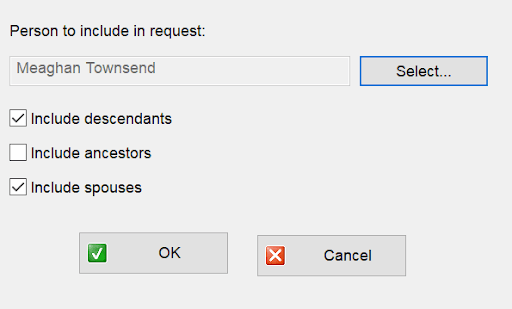
You can then email or transfer this file to your local print shop or upload it to an online printing service for professional printing, binding, and/or framing.
Create your family tree chart using Family Tree Builder
You can also create your family tree chart using MyHeritage’s free desktop software, Family Tree Builder. It features all the same design and customization options (except for the sun chart), with some added bonuses:
- On Family Tree Builder, you can see the chart as you’re building it and apply changes as you go, making it easier to visualize what the end result will look like.
- On the Family Tree Builder interface, you can drag and drop profiles around and rearrange them however you like on the chart.
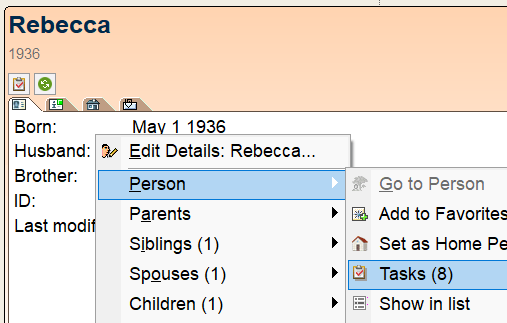
- You can create a family tree chart directly from the profile card of an individual.
- Since the file is processed on your computer rather than on an external server, it only takes a few seconds or minutes to create the chart.
- You can create the chart not only as a high-resolution, print-quality PDF, but also as a low-resolution PDF or a JPEG image file. These are smaller, more compact files that are easier to share online.
There are several ways to begin creating a family tree chart on Family Tree Builder. You can find the “Charts” menu in the top menu or the top toolbar, under the “Edit” menu on any profile card, or when you right-click a name on the name list.

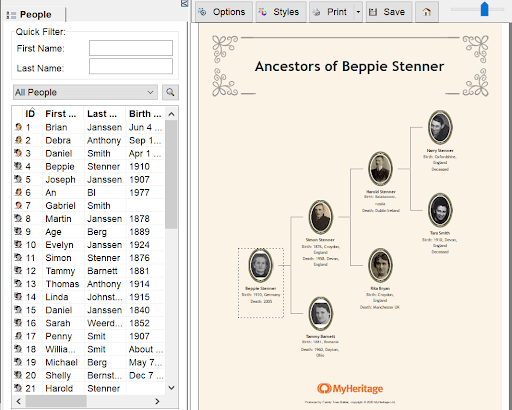
You can select a chart type from the menu, or click “Chart Wizard,” which will allow you to select a chart type and then your preferred style. Then your chart will be created. Above the window with the chart, you’ll see the “Chart Options” and “Styles” buttons. Here you’ll find all the customization options detailed above.
When you’re done creating the chart, you can print it using your home printer by selecting “Print.” You can also save the chart as a PDF or JPEG file on your computer by clicking “Save.”
Create a family treeon MyHeritage
Comments
No comments yet. Be the first!