
Introducing Family Infographics: Turn a Loved One’s Life Story into a Beautiful Work of Art
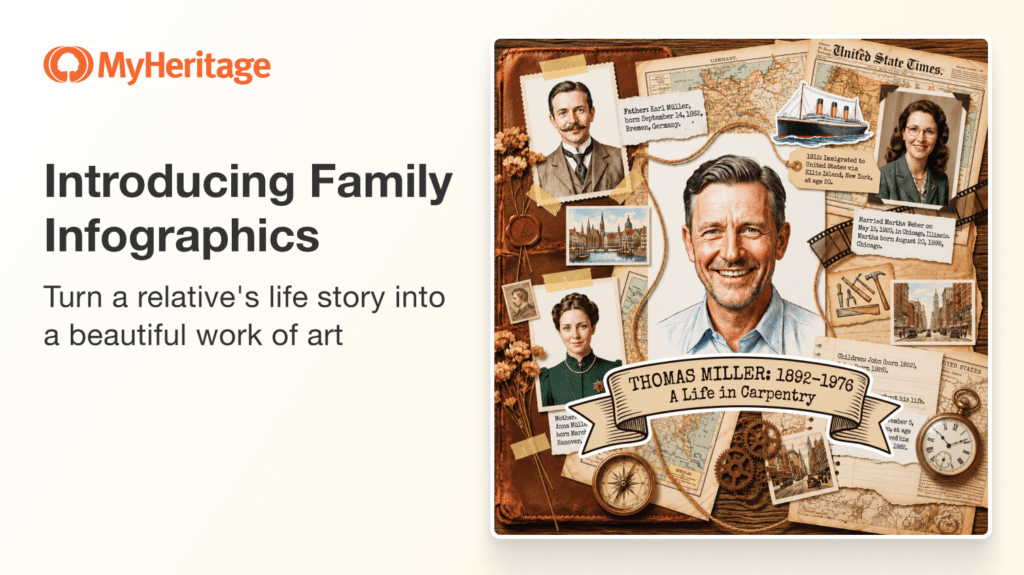
We’re excited to introduce Family Infographics, an innovative new feature that can transform your photos and family tree data into a stunning poster-style work of art illustrating the life of anyone from your tree.
Search billions of historical records
Uncover your family story through historical records

Creating a family tree often involves spending many hours entering small details: names, dates, relationships, milestones. Photos are then added to enrich the family tree. But the details and the photos often don’t successfully capture the richness and beauty of a person’s life story. That’s what makes Family Infographics so special.
Family Infographics uses the power of AI to turn the information you’ve gathered into a meaningful work of art that you’ll be proud to share, display in your home, or give as a gift. It’s perfect for celebrating the life of a loved one, as a birthday or anniversary gift, or in memory of someone you miss. Whether you share it with relatives, print it as a keepsake or simply view it to enjoy a family story in a new light, each Family Infographic offers a powerful way to experience your heritage.
Family Infographics is available on the MyHeritage website on the desktop and mobile browser. It will be added to the MyHeritage mobile app soon.
How Family Infographics works
This feature builds on AI Biographer™, a feature we introduced at the end of 2023 which creates a Wikipedia-style article about the life of an ancestor. Family Infographics takes that idea a step further by presenting similar information visually in an infographic, combining text and imagery to show a person’s life story at a glance.
Once you select a person from your family tree, and pick one of the 15 beautiful styles available, the Family Infographic is automatically generated. It is created based on their key life details, as well as information about their parents, spouses, siblings, and children. AI is used to turn all that data into a beautiful image.
The process combines multiple elements. Profile photos are transformed into stylized artistic renderings. Facts such as names, dates, and locations are incorporated into the design. Visual cues are added to reflect aspects of the person’s life, such as where they lived or what they did for a living. All of this is arranged into a structured layout according to the style you selected, centered around the featured individual.
Because the Infographic is based on your existing data, the more complete the information in your tree, the better the results. Adding missing dates, places, life events (especially occupation, education and immigration), and high-quality photos — especially for the featured person, their parents, and their spouse — leads to a richer and more detailed infographic.
How Family Infographics came to be
Family Infographics is the brainchild of our AI concept manager Golan Levi. Looking to gauge its value to our users, he teamed up with Senior Product Manager Itay Sobol to test the concept. First, we created personalized Infographics as a surprise for some of the guests at MyHeritage’s annual Family Day, where employees invite their parents or other relatives to visit our headquarters. The response was immediate and emotional. Then, we created several thousand of Family Infographics and emailed them to some of our users who have used the AI Biographer feature, as a surprise gift, and asked them to share their feedback. Responses were overwhelmingly positive, as was the feedback we got when we brought the concept to our booth at RootsTech 2026.
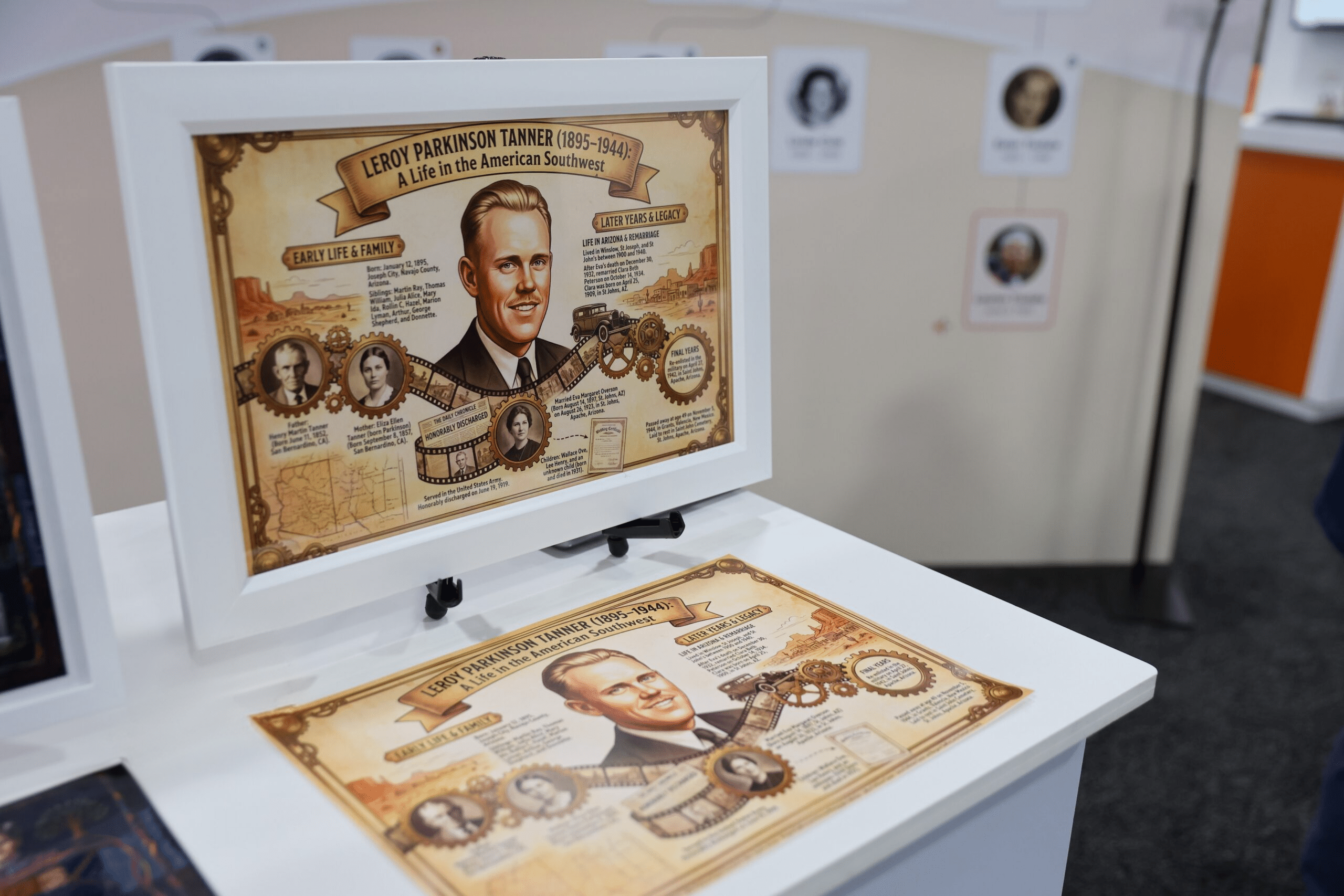
Family Infographics presented at the MyHeritage booth at RootsTech this year
Based on this response, we decided to build this feature into MyHeritage. Itay and our talented team of designers and developers then developed Family Infographics into an easy-to-use feature that is now available to everyone.
Creating a Family Infographic
Creating a Family Infographic is simple and quick, especially if your tree already has high-quality photos and lots of details about the family member’s life.
To get started, visit myheritage.com/family-infographics (also known as the landing page for this feature), or select Family Infographics from the “Family tree” menu on the navigation bar.
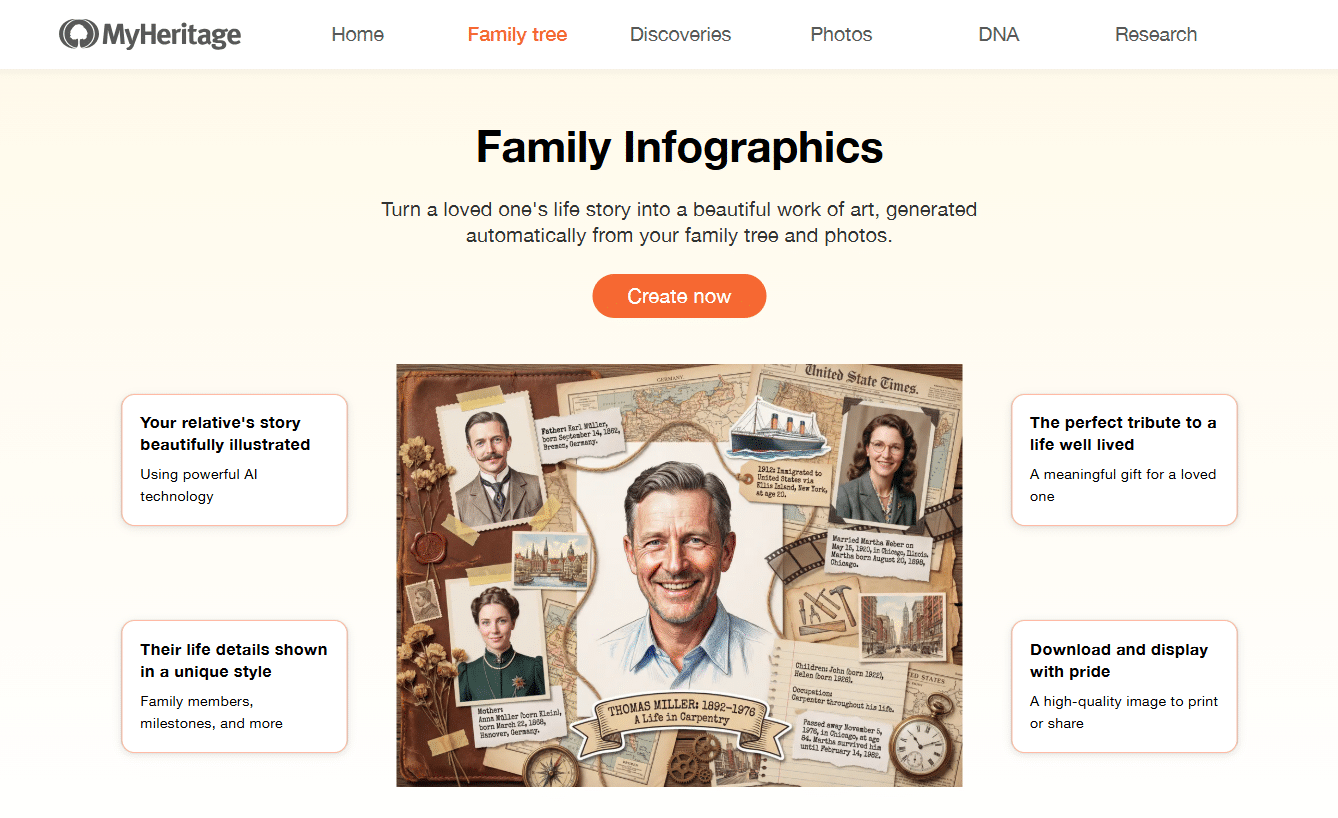
The Family Infographics landing page (click to zoom)
Click “Create now”. Then enter the name of a person in your family tree, or select from among the suggested relatives.
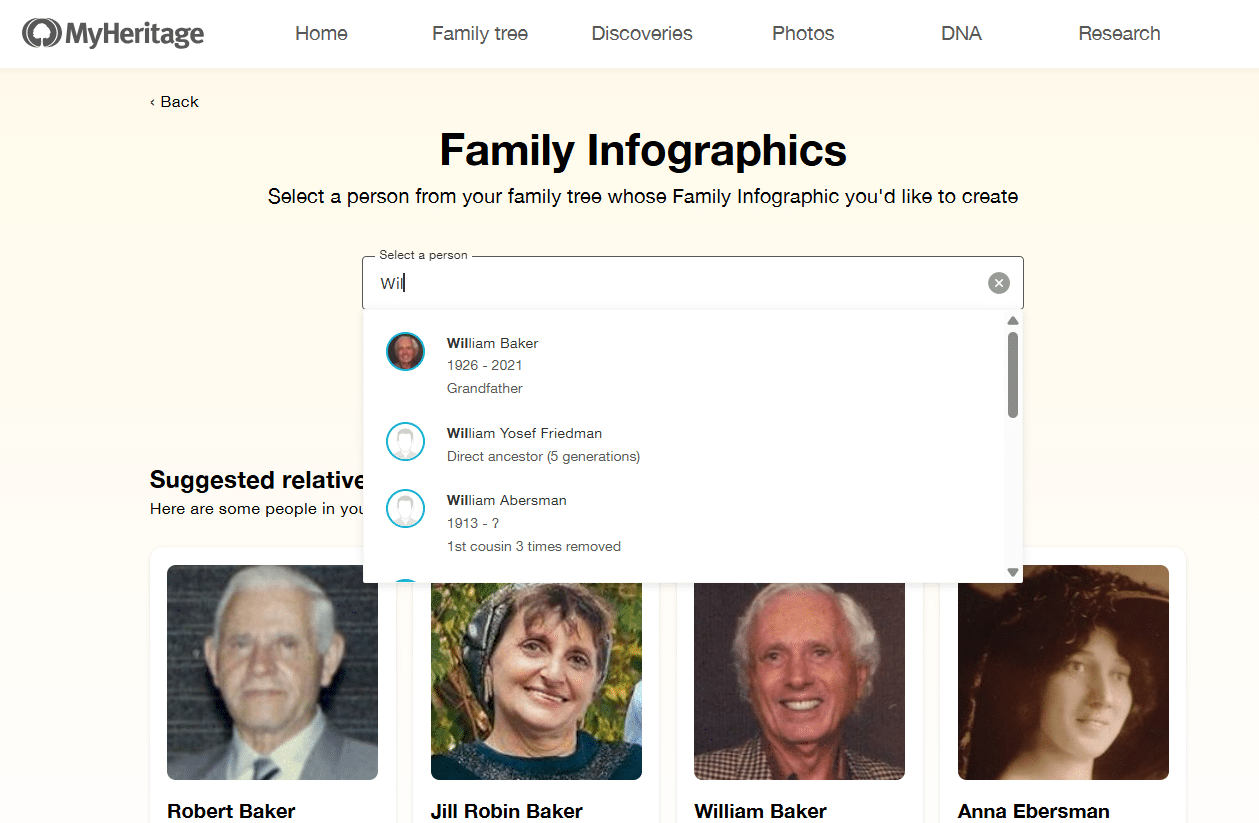
Selecting a person to create a Family Infographic (click to zoom)
You can also create a Family Infographic from the left-hand panel in your family tree (shown below) or from the profile page of the individual under “Additional actions.”

Accessing Family Infographics from the left-hand panel in the family tree (click to zoom)
Select one of the 15 Infographic styles, and click “Continue”:
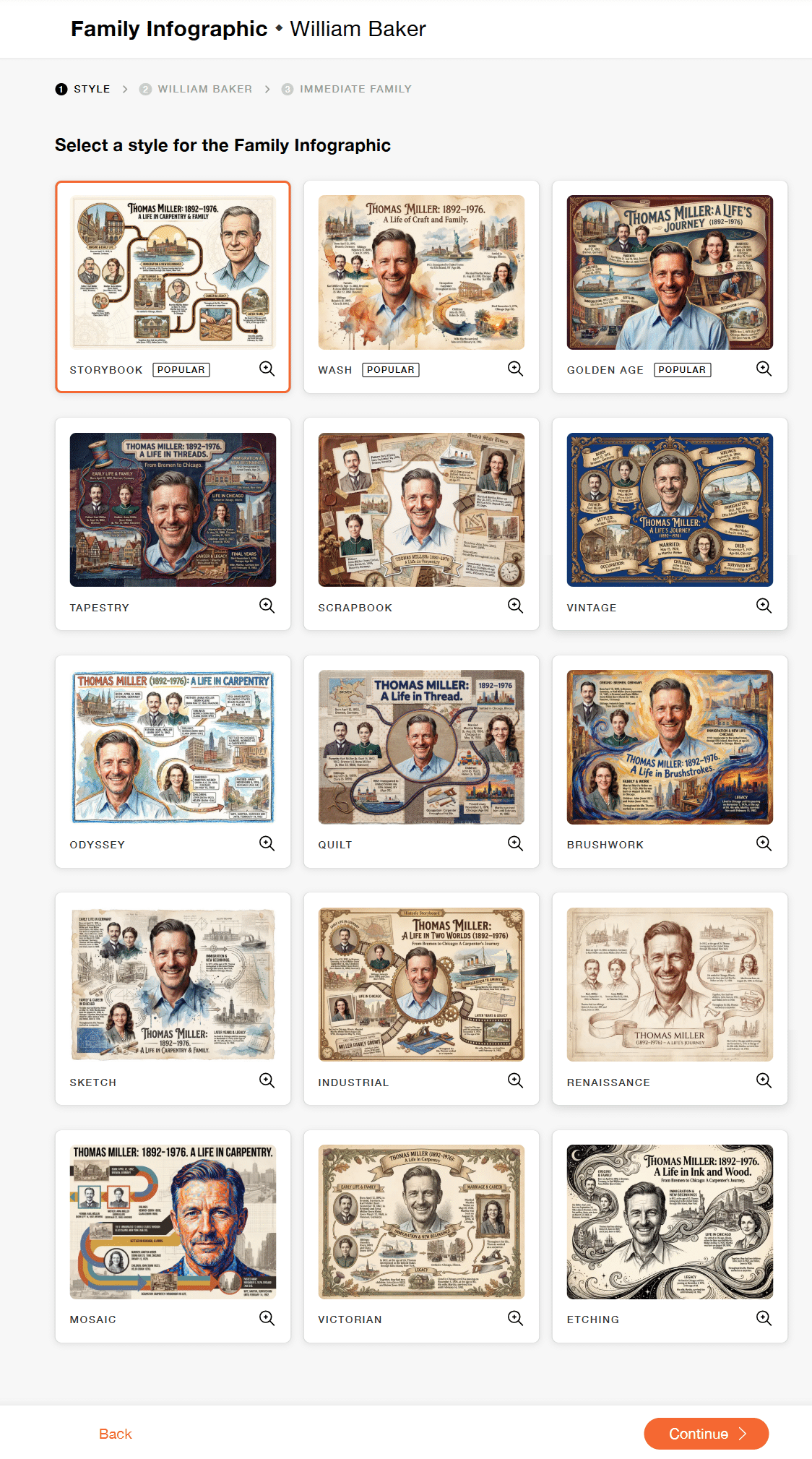
Selecting a style for the Family Infographic (click to zoom)
Next, review the selected relative’s photo and details, obtained from your tree. This is your opportunity to make some improvements. You can change the photo, edit information, or fill in missing facts. Any changes you make here will be saved to your family tree as well.
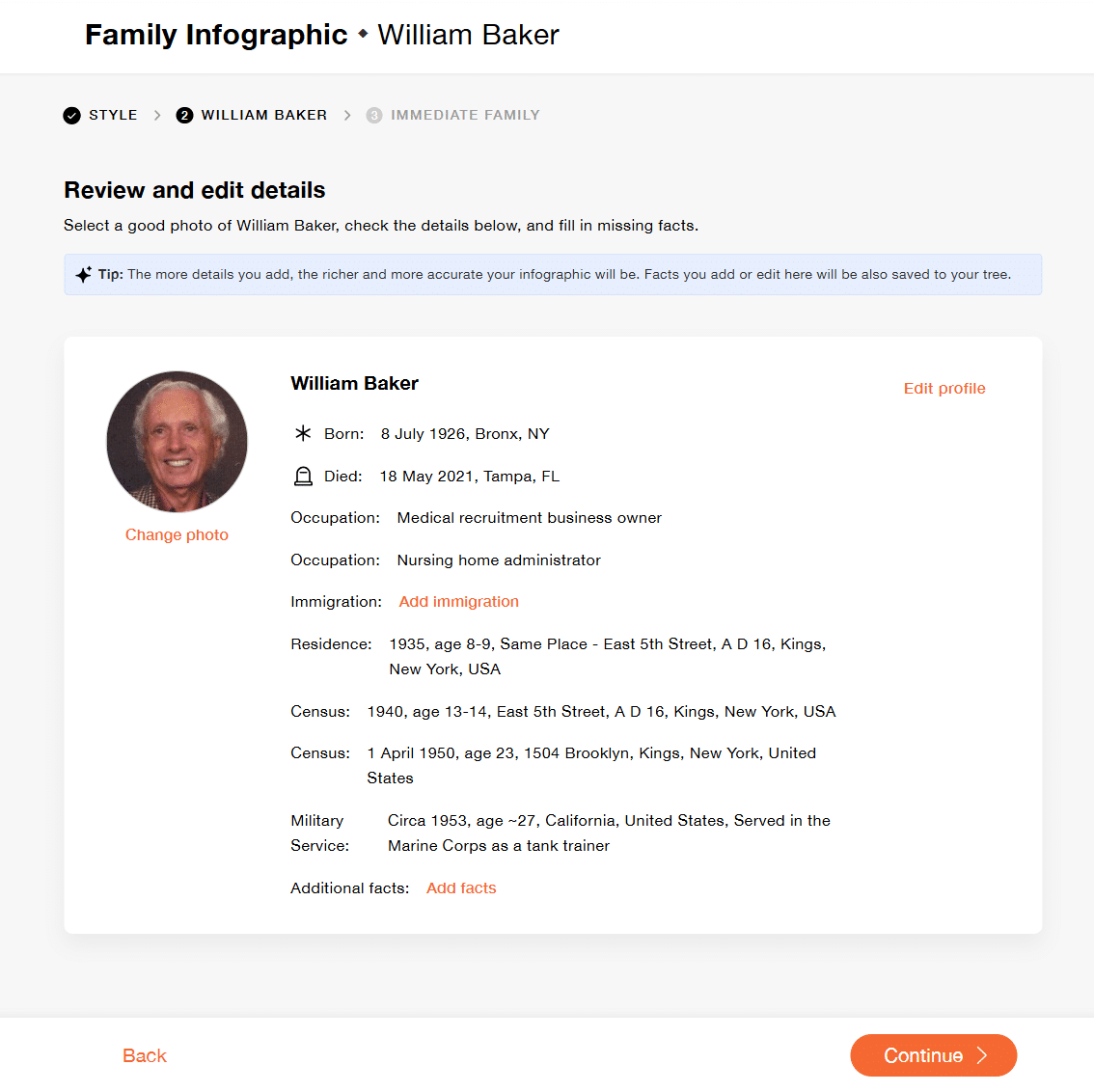
Family Infographics: Reviewing and editing details (click to zoom)
Note that the more information you include, the richer and more detailed your Infographic will be. You can create a Family Infographic with just a photo and a few details, but for best results, we recommend including:
- High-quality photos of the individual as well as their parents and spouse(s)
- Dates and places of birth, death, and marriage for the individual and all immediate family members
- Any information you have on the individual’s occupations, education, immigration, residences, and/or military service
When you include details such as places, occupations, and immigration information, your Infographic will be automatically enriched with visual elements and scenes that illustrate them, such as the city where the person was born, the ship they traveled on when immigrating, the factory where they worked, and so on.
After clicking “Continue,” review and edit the information of the featured person’s immediate family members, including photos for the parents and partners.

Family Infographics: Reviewing the details of immediate family members (click to zoom)
Finally, click “Create Infographic.”
Before you create your first Infographic, you’ll need to give your consent.
The Infographic will be ready within a few minutes. There’s no need to stay on the page while it’s being created — MyHeritage will send you an email to notify you when it’s ready.
The email includes a small thumbnail preview of the Infographic. Click the thumbnail or the “View and download” button to view the full-size image.
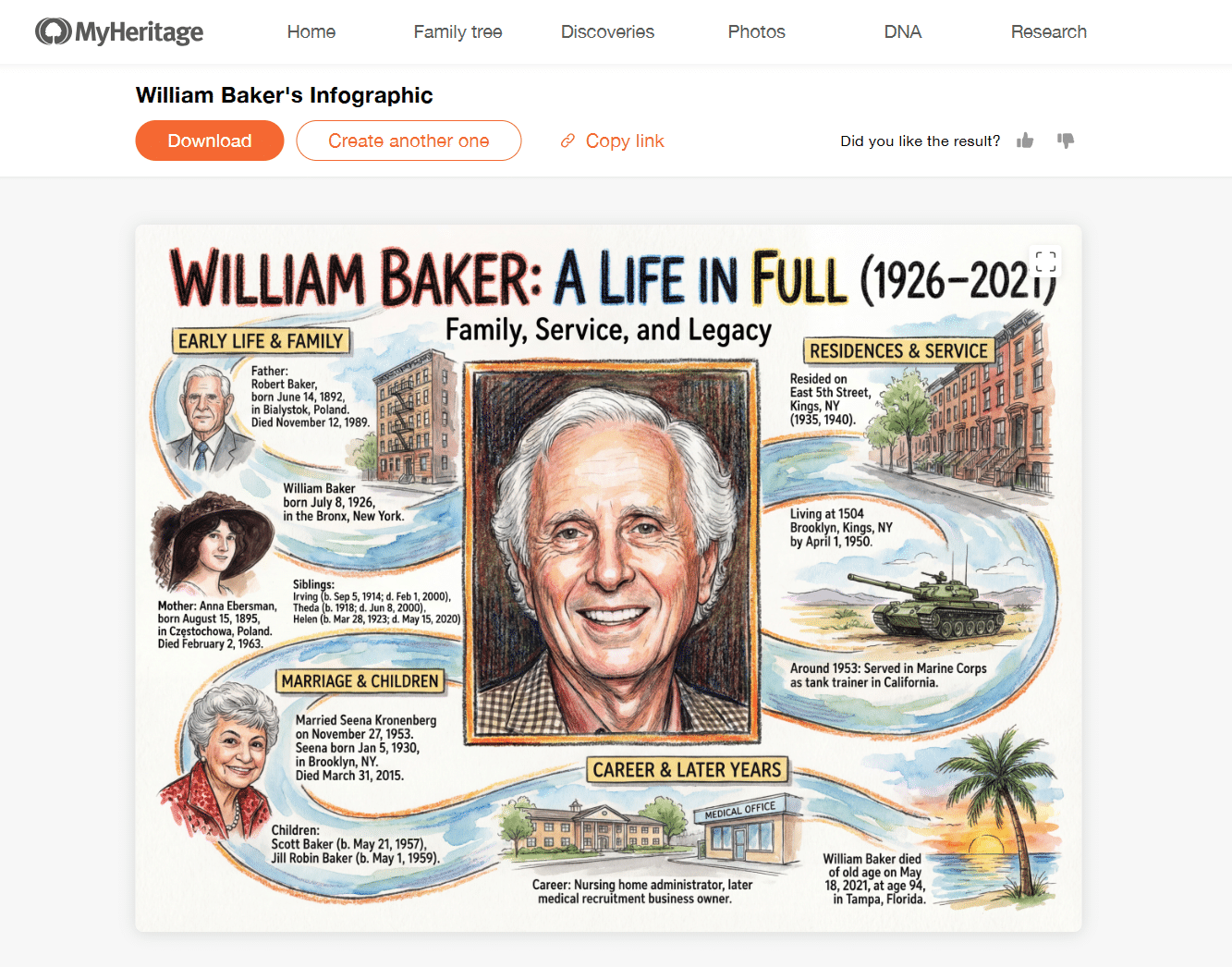
Viewing the full Family Infographic (click to zoom)
Click “Download” to download it as a high-resolution image. You can also share a link to the Infographic on social media or privately by clicking “Copy link” and pasting it wherever you like.
Sharing and printing Family Infographics
Our beta testers have described family members reacting with great emotion when they saw a loved one’s Family Infographic. We encourage you to share them on social media as well, so others can enjoy the beautiful results and try it out for themselves.
Many users choose to turn their Infographic into a poster, framed print, or canvas to display at home or give as a gift. Family Infographics are generated in high resolution with a 4:3 aspect ratio (landscape orientation). You can print them at home or use a global online printing service such as Vistaprint.
For a perfect edge-to-edge fit, we recommend choosing print sizes that match the 4:3 ratio, such as 24"×18" or 40x30 cm. However, you can also print on popular sizes like A3, A4, or 16×20". Just make sure to check the preview on the printing website before checking out to ensure that nothing important will be cut off in the final print.
Examples
Below are a few examples of Family Infographics in the styles available:

The Golden Age style (click to zoom)
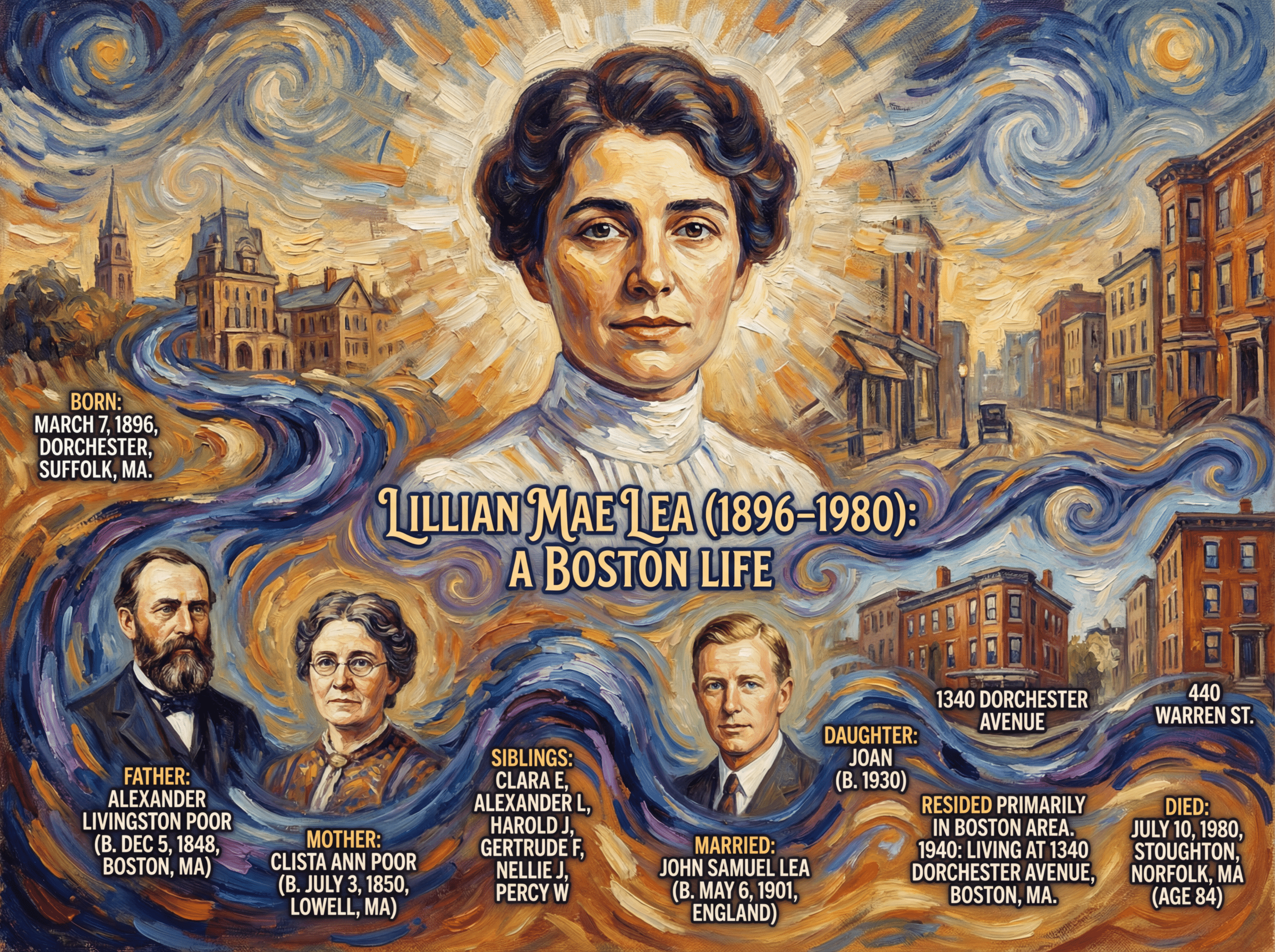
The Brushwork style (click to zoom)
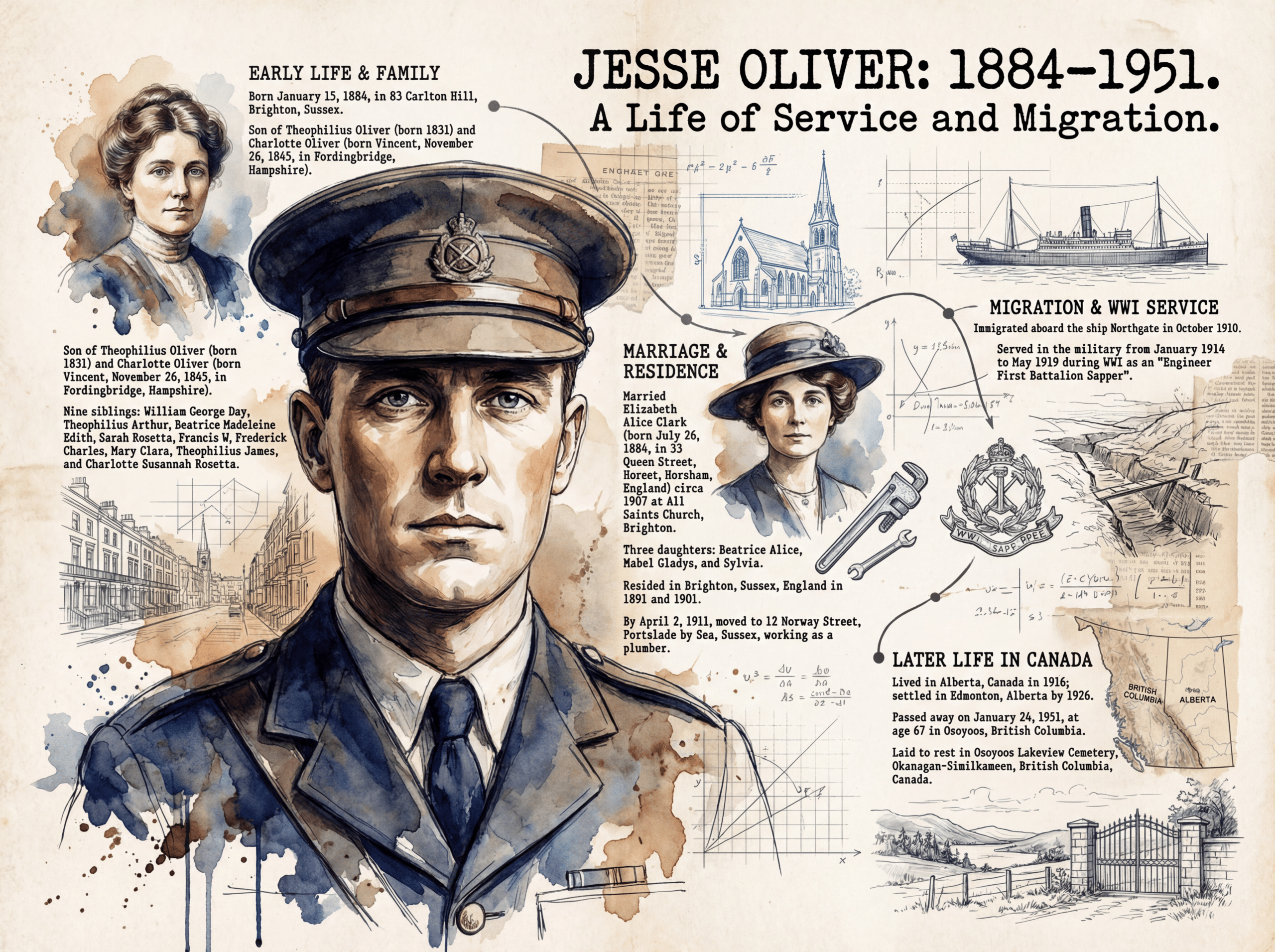
The Sketch style (click to zoom)
We’ve also experimented with turning Family Infographics into short animated videos that bring a person’s story to life in a dynamic way. This feature isn’t currently available, but we’re considering adding it in the future. Here’s an example of what it could look like:
Would you like to see us add this capability? Let us know!
Cost
Anyone with a family tree on MyHeritage can create their first Family Infographic for free.
To create additional Infographics, a MyHeritage Complete or Omni plan is required.
Privacy
Family Infographics are generated using the photos and data in your family tree, and your privacy is fully protected.
The information is used solely to create your Infographic and is not shared with third parties to train external AI models. Your Infographics are saved privately in your account, and you retain full ownership of both your photos and the resulting images.
Please use Family Infographics and all AI features responsibly, and avoid uploading materials that others may find offensive.
Summary
Family Infographics transform information in your family tree into a beautifully designed poster illustrating a person’s life. They integrate photos, relationships, and key life details into a single composition. With Family Infographics, you can share your relatives’ stories with others and turn your research into something tangible, whether as a personal keepsake or a meaningful gift.
Family Infographics reflect MyHeritage’s commitment to leveraging the latest technology to help you explore and celebrate your family history in new ways. We hope you enjoy it!
FAQs
Can I create a Family Infographic for a living person?
Yes! Family Infographics make a wonderful personalized gift for birthdays, anniversaries, and family reunions. You can generate them for your living relatives too.
Where are my Family Infographics saved, and how can I view them?
All Infographics you generate are automatically saved to your MyHeritage account. You can find them in the “My Photos” section either in the private album named “Family Infographics” or under the name of the specific relative you created the artwork for. You’ll also receive an email with a direct link to view each Infographic as soon as it is ready.
Why is it that sometimes, a face in the Infographic does not look exactly like my relative?
This feature uses AI to generate an artistic representation, and AI isn’t perfect. This may happen if the profile photo in your family tree is in low resolution, or contains multiple people. To fix this, replace the person’s profile photo with a better photo, and generate the Infographic again. Sometimes, it can also be resolved simply by regenerating the Infographic or choosing a different style.


Comments
No comments yet. Be the first!